

Sharing and read-only access
Farming can share a specific working location, not just the workspace home. Chat answers and the File Viewer copy temporary read-only links; the page-level share panel also provides a QR code that another device can scan.
Copied links use /farming/s/<code> with a 22-character random code, keeping credentials and location details out of the shared URL. The same link can be opened by multiple recipients until its original expiry, including after a server restart. Closing the panel does not invalidate the copied link.
Sharing requires token authentication. When authentication is disabled, Farming refuses to create a share because a recipient could bypass the read-only restriction and open the unprotected instance directly.
Share a Chat answer
Select the share button below a completed answer. Farming copies a read-only link and confirms next to the button that the link is view-only and shows its exact expiry time. The link records the answer's durable Turn identity so the recipient opens at that exact answer.
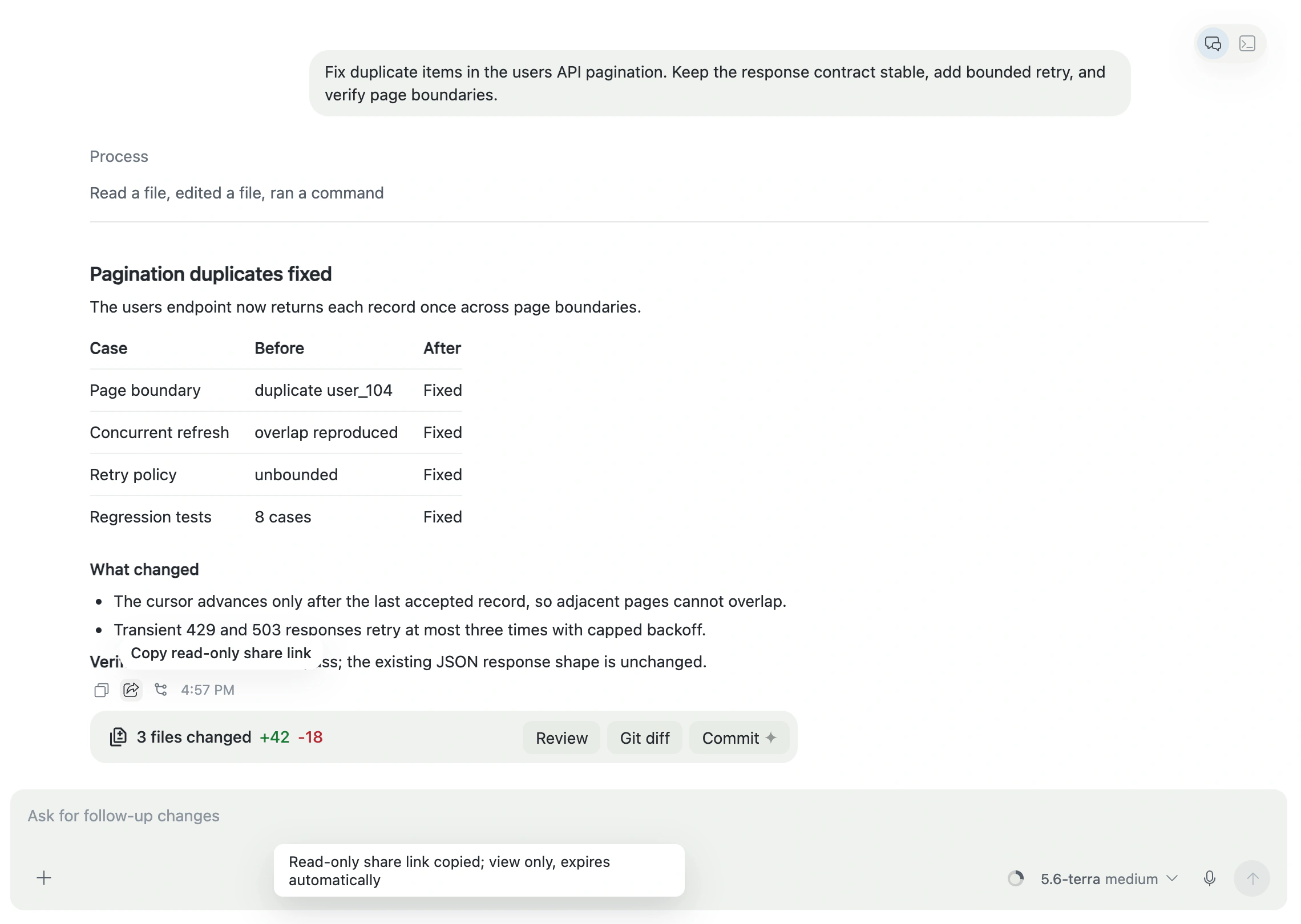
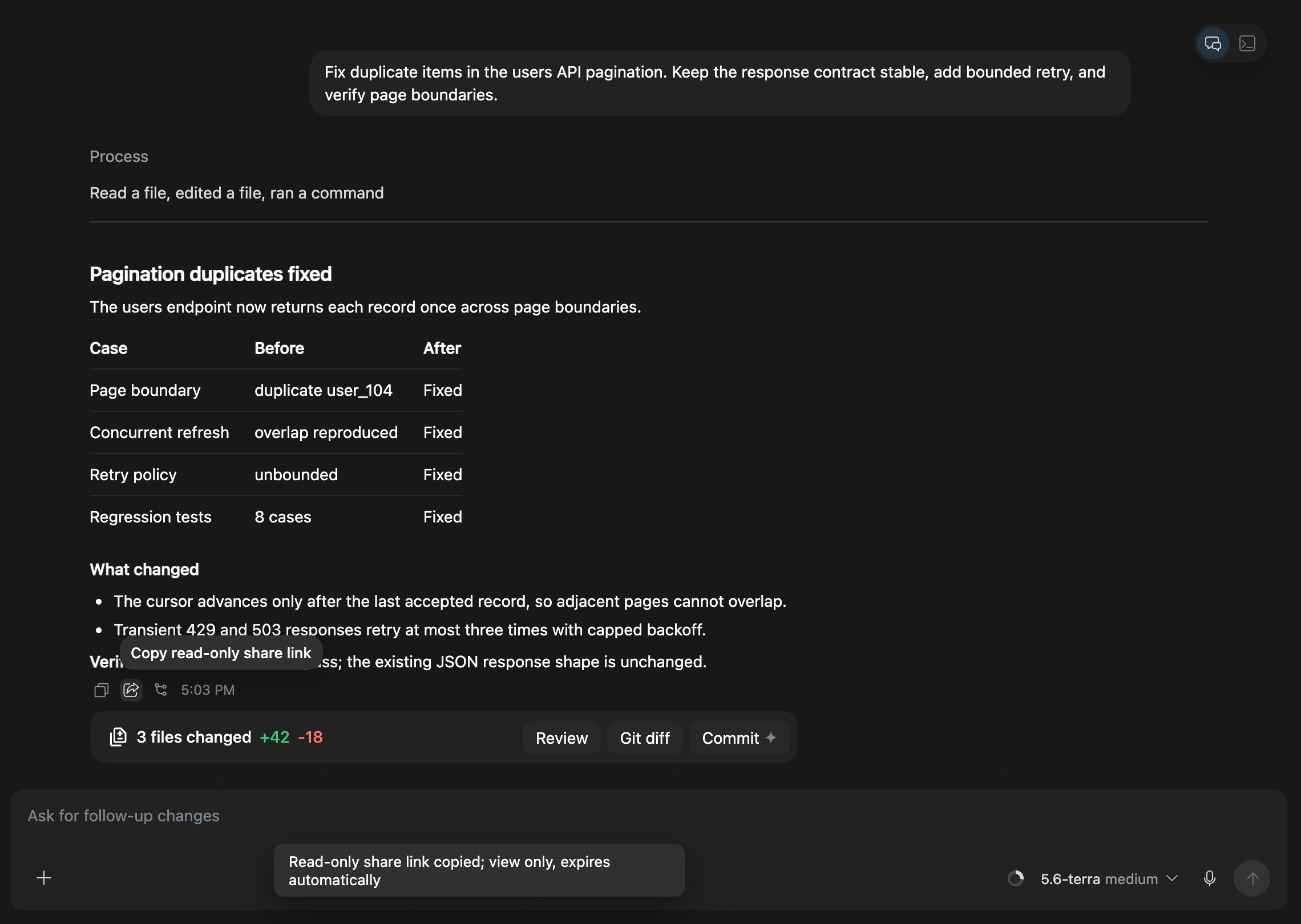
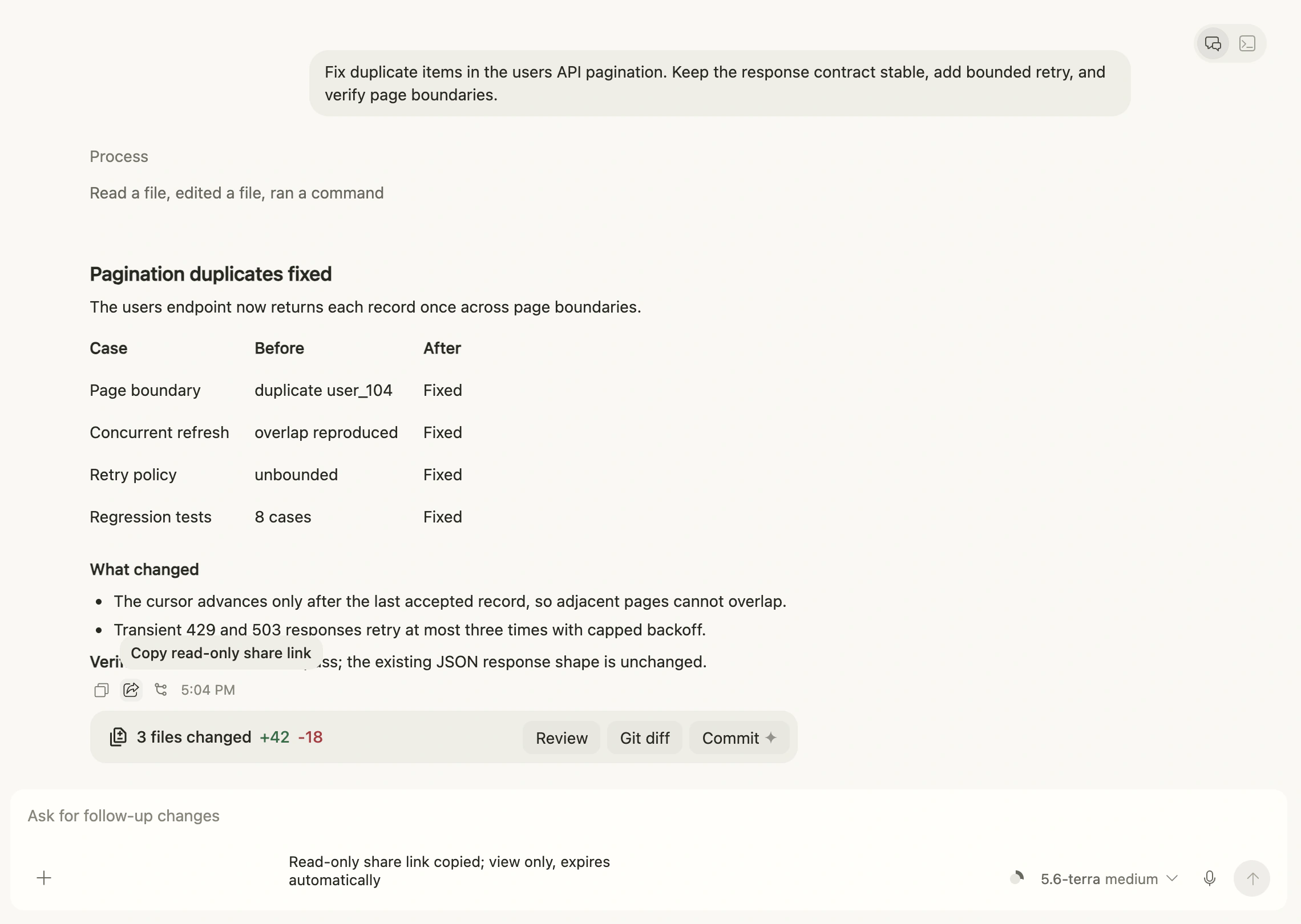
When the answer is in an older history page, Farming loads earlier pages as needed. If the target still cannot be found, it falls back to the latest Chat position and reports the location failure. Access remains read-only.
Share a file reading position
Open a file and select the share button in the viewer toolbar. The link records:
- the current Project and file;
- the Editor or Diff view;
- the current reading line and column.
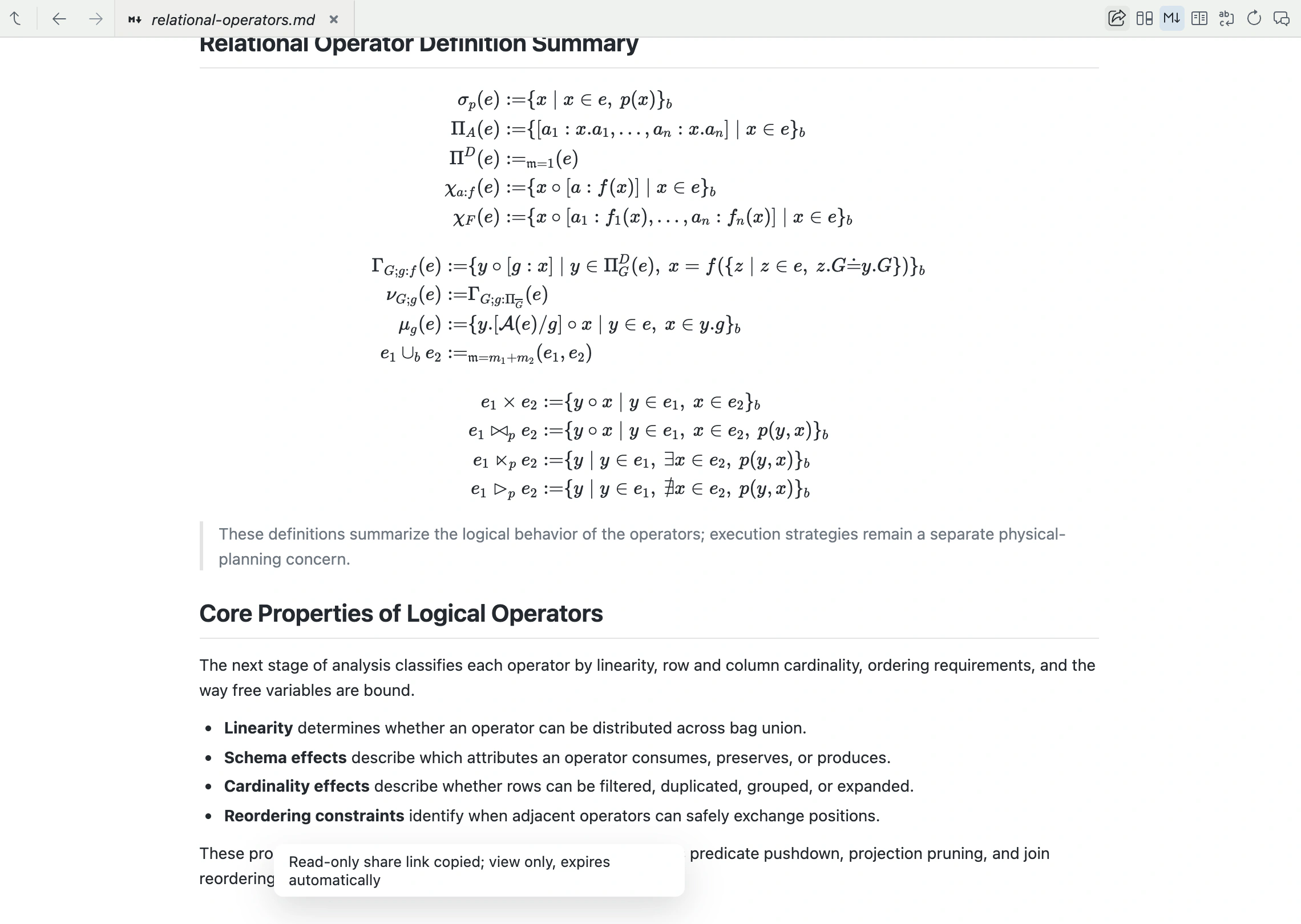
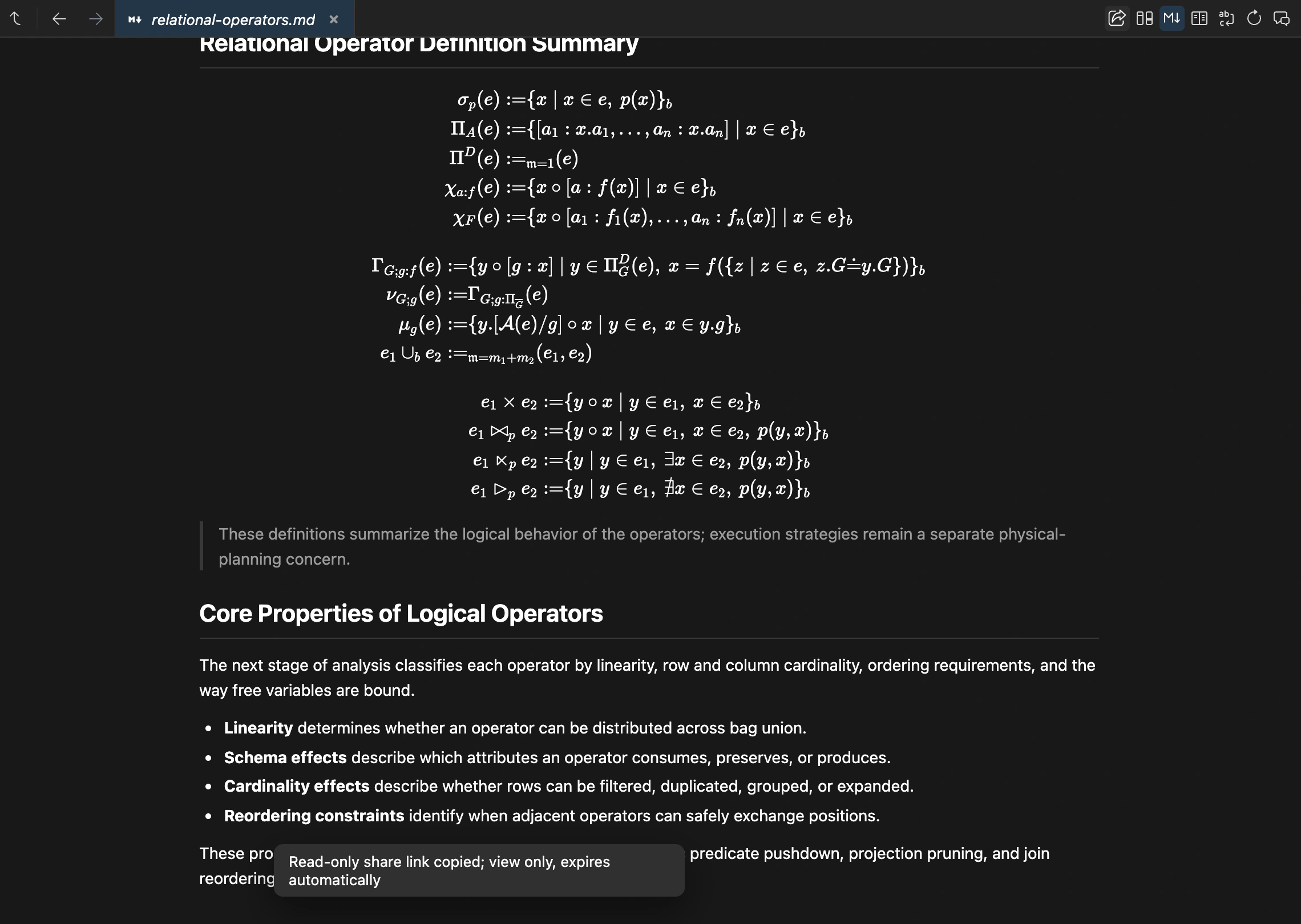
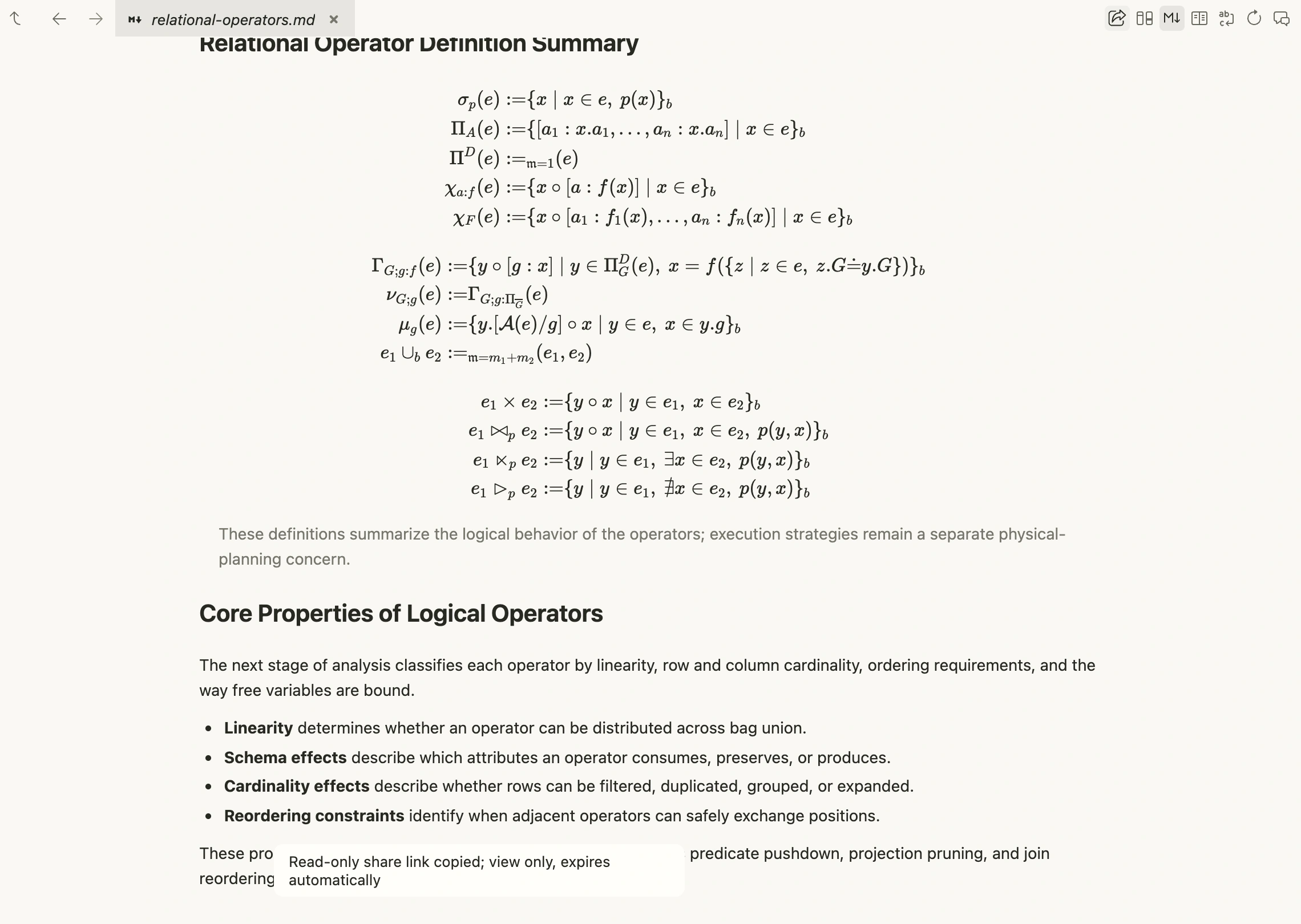
When the link opens, an out-of-range line or column is clamped to the current file. If the file has moved or been deleted, Farming reconciles the bounded Project inventory, opens the nearest available parent folder, and reports the fallback. If the Agent or Project cannot be resolved, it keeps the default workspace without expanding access.
Scan a QR code on another device
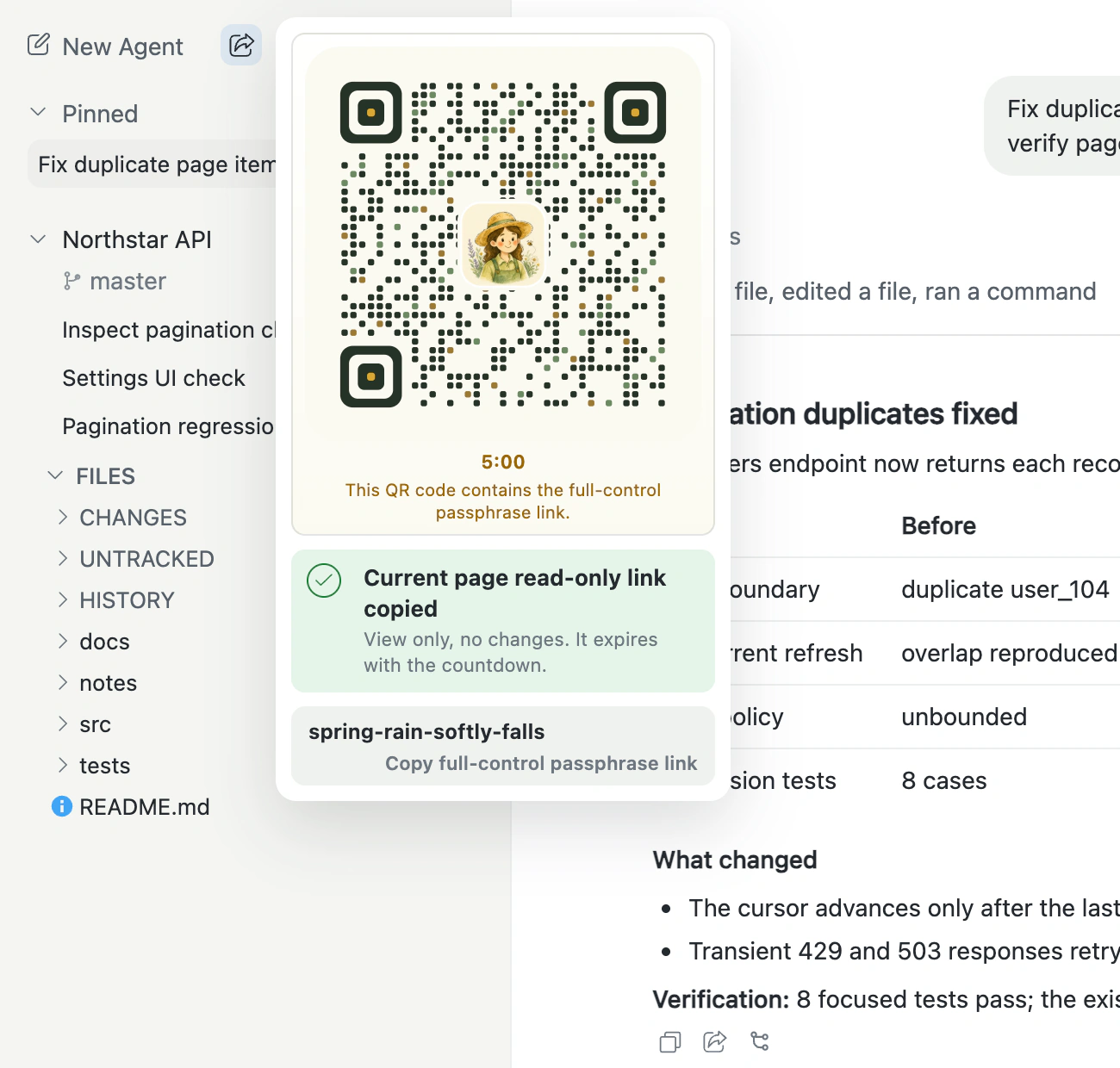
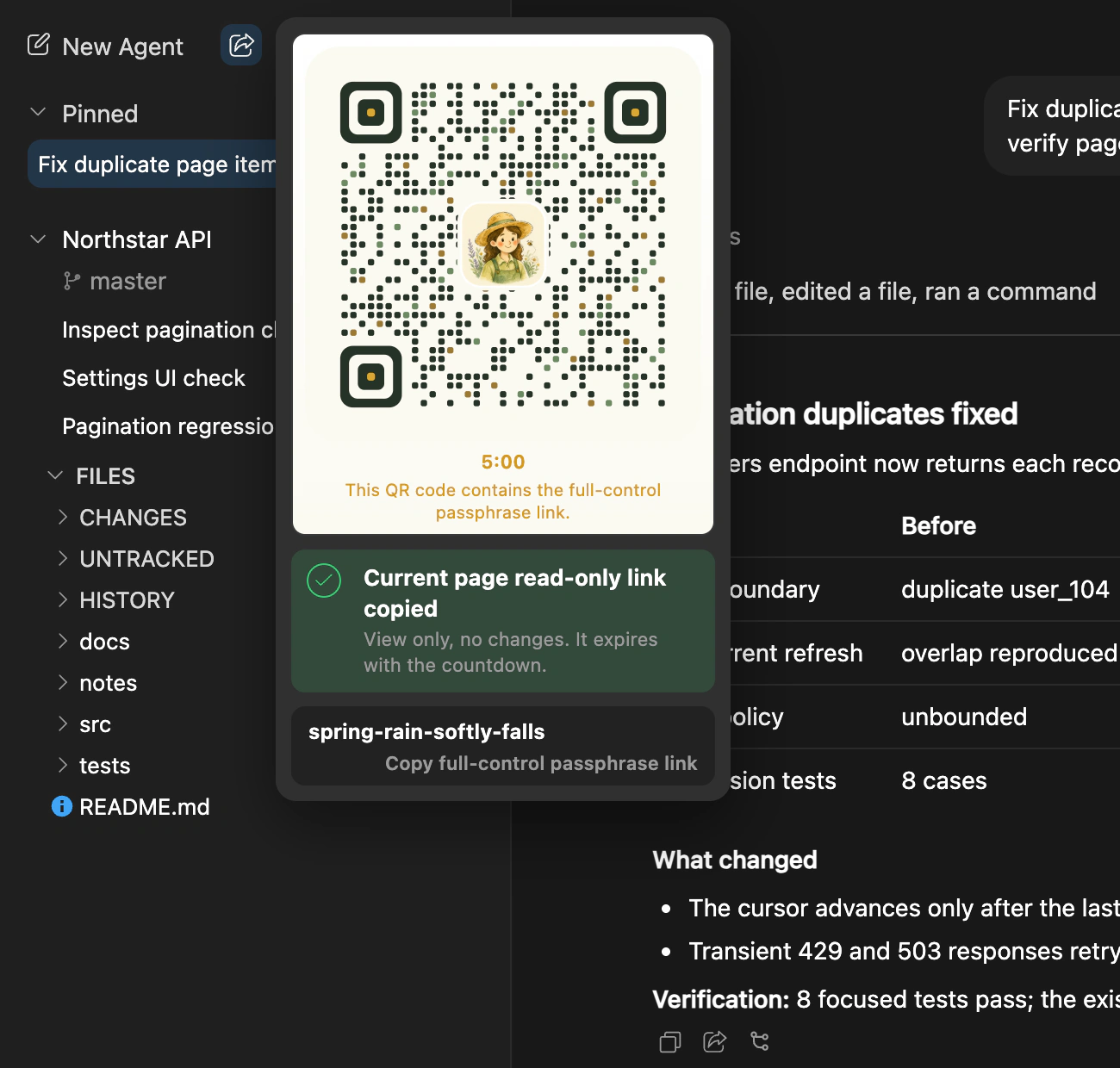
Select Share current page at the top of the sidebar. Farming copies the read-only short link for the current page and opens the QR panel. Point another device's camera or system QR scanner at the code to open Farming; Farming does not need camera access on the device showing the code.
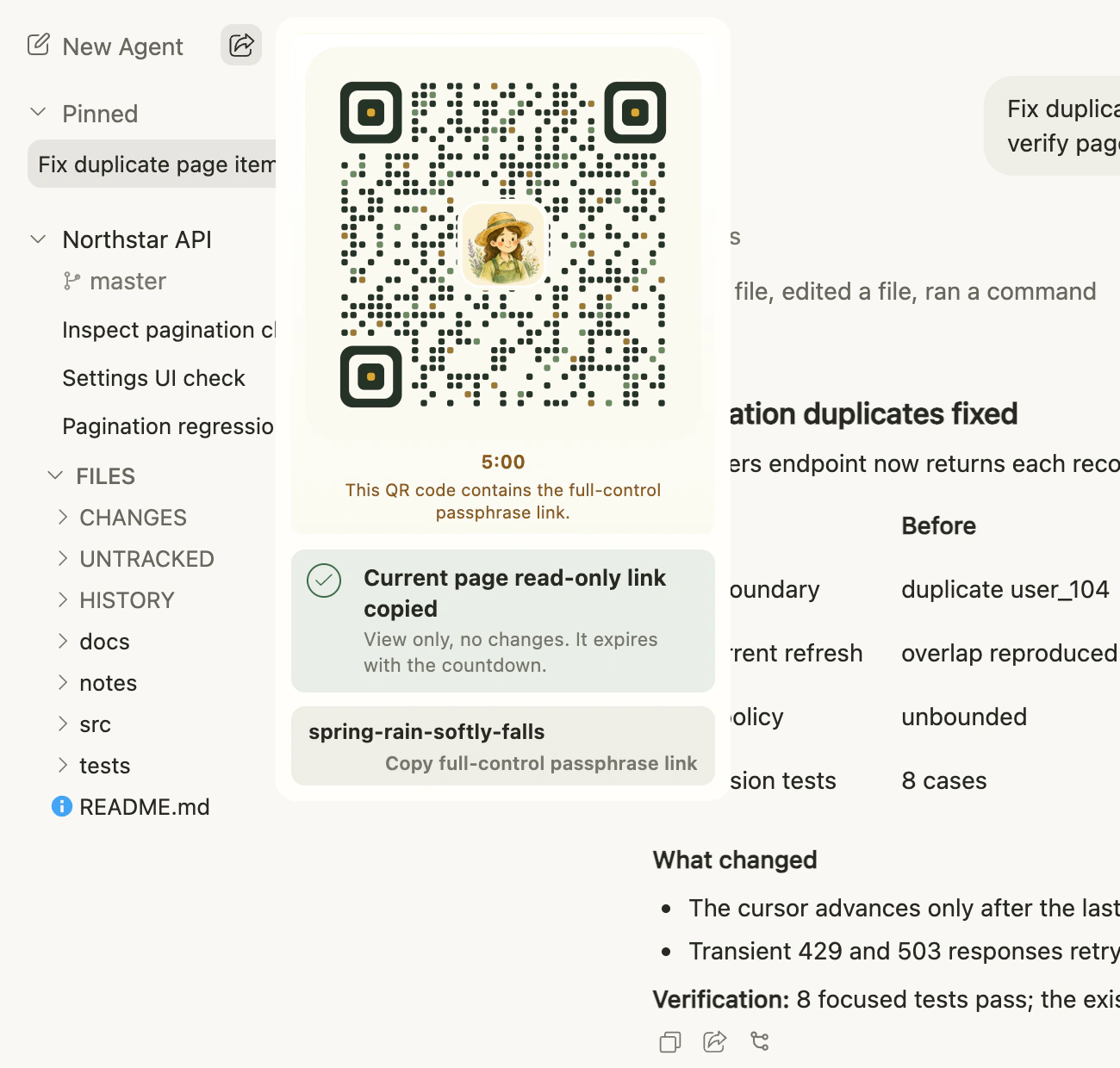
An Owner QR code grants full control
The QR code opened by an Owner contains a one-use full-control ticket. Scan it only on a trusted device, and do not put it in screenshots, issues, or public chat. When a read-only visitor re-shares, the QR code remains read-only and no Owner passphrase is shown.
A QR ticket can be redeemed once and is valid for at most five minutes. Refresh the QR code after its countdown expires. After a successful scan, the server stores the credential in an HTTP-only cookie and removes the ticket from the visible URL before loading the app.
Permissions and expiry
| Share method | Created by Owner | Created by read-only visitor | Lifetime |
|---|---|---|---|
| Chat or File Viewer share button | Read-only | Read-only | At most five minutes and no longer than the parent read-only capability |
| Page-level copied link | Read-only | Read-only | At most five minutes and no longer than the parent read-only capability |
| QR code | Full control | Read-only | One redemption, at most five minutes |
| Passphrase link | Full control | Not available | Until the instance passphrase changes or rotates |
A read-only recipient can view Chat, Terminal output, Files, state updates, and Browser frames. They cannot send Chat or Terminal input, modify files, respond to permission requests, control Browser, or connect to the Computer Viewer, whose current transport cannot enforce a server-verifiable read-only boundary.
Closing the share panel does not change the permissions of a copied link. Only an unexpired capability can establish a new HTTP request or WebSocket connection. An established WebSocket keeps its initial admission result until it disconnects.