

Language Server
Files connects to an available Language Server for the current language and Project. Open a code file to navigate definitions, references, and implementations, or inspect call hierarchy, type hierarchy, diagnostics, semantic highlighting, and inlay hints.
Inspect code relationships
Open the context menu in a saved code file and choose Call Hierarchy or Type Hierarchy. Results dock beside the editor. Expand nodes to open their files and locations while keeping the relationship tree available.
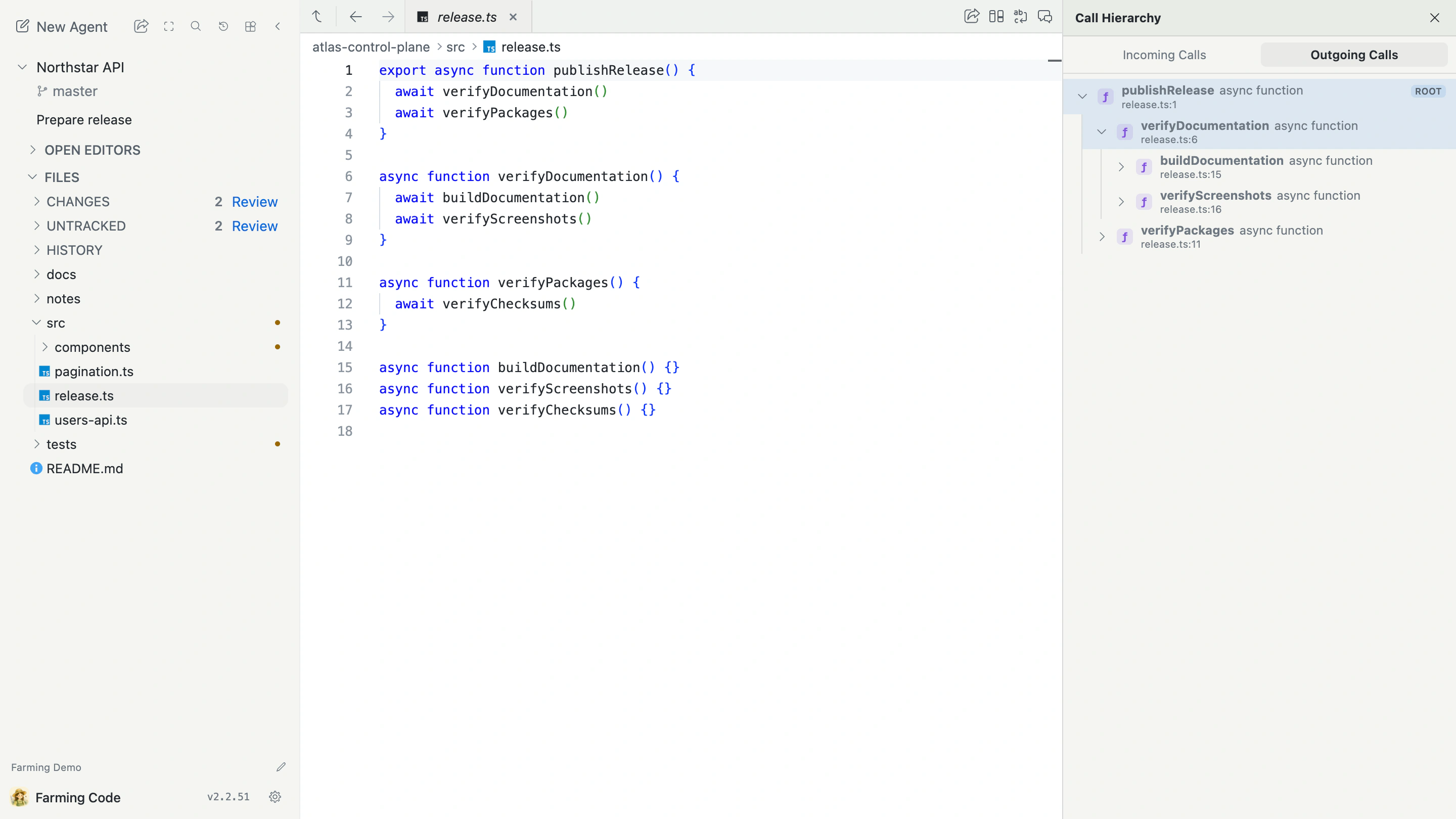
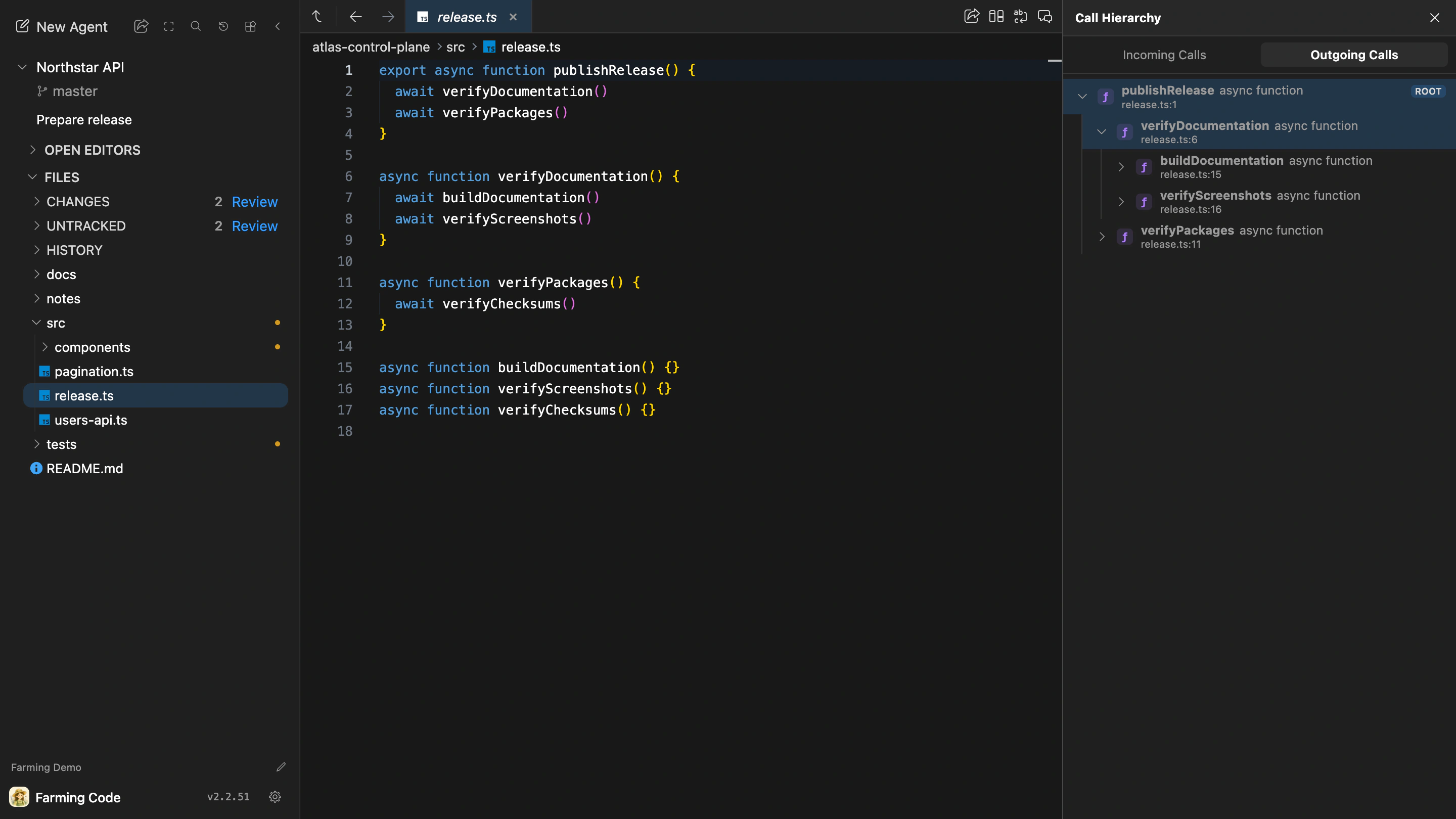
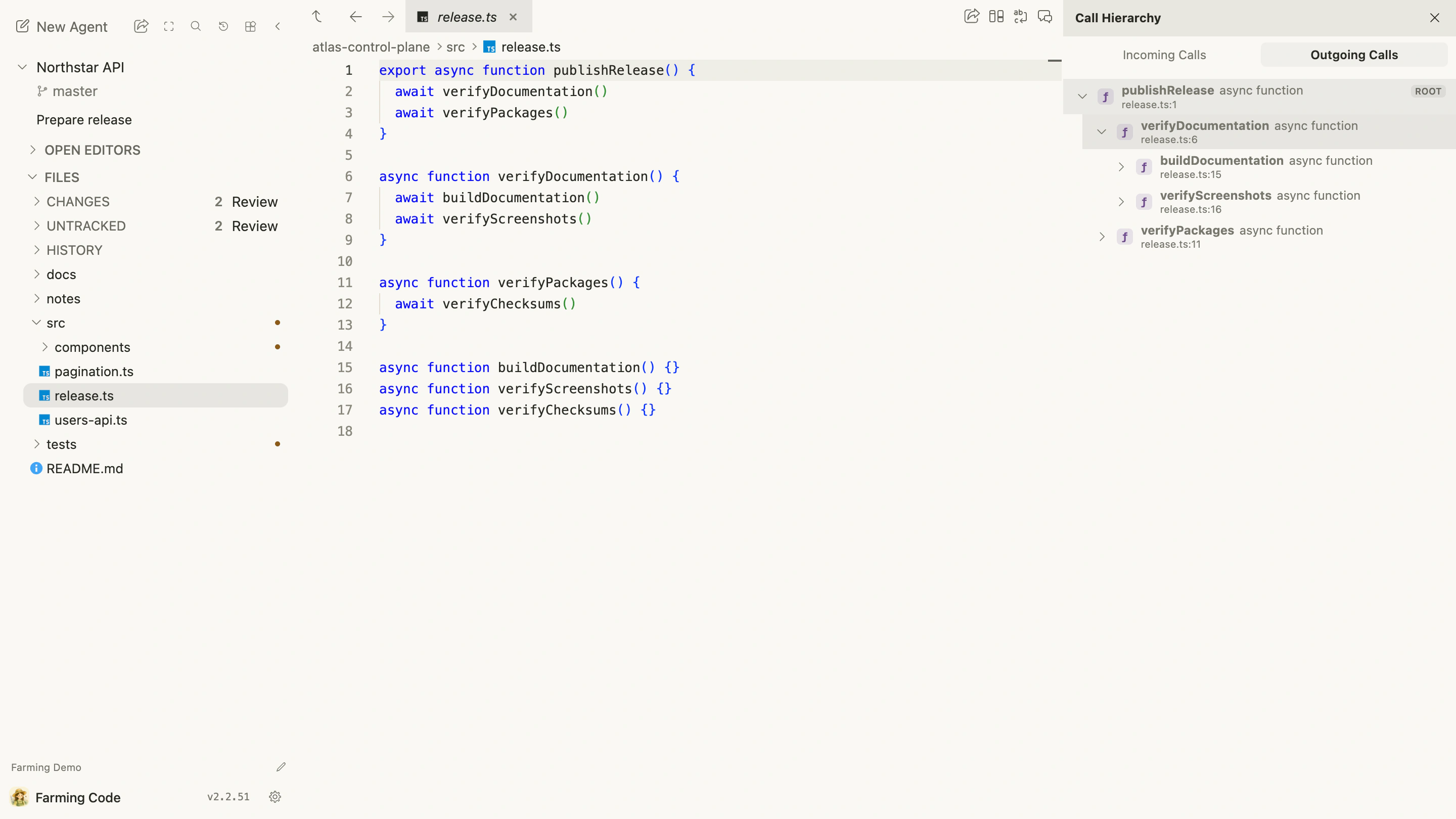
The same menu provides definitions, references, implementations, document symbols, and workspace symbols. The actions shown for a Project come from the capabilities reported by its initialized Language Server.
View and manage Language Servers
Language Server support is enabled by default and starts on demand when a supported code file uses a semantic action. Open Plugins → Farming to see which Servers are running, available on the host, installable by Farming, or not installed.
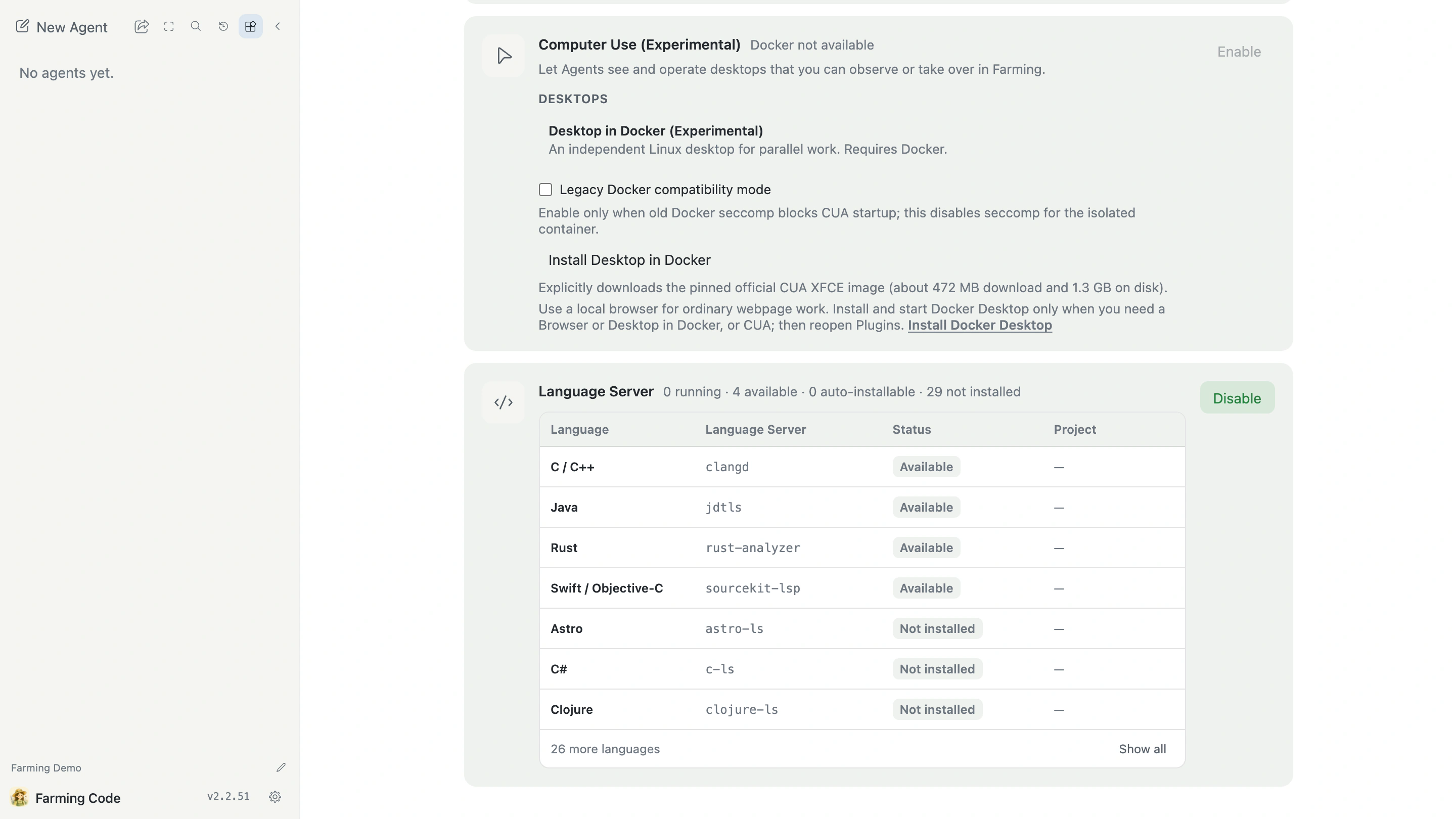
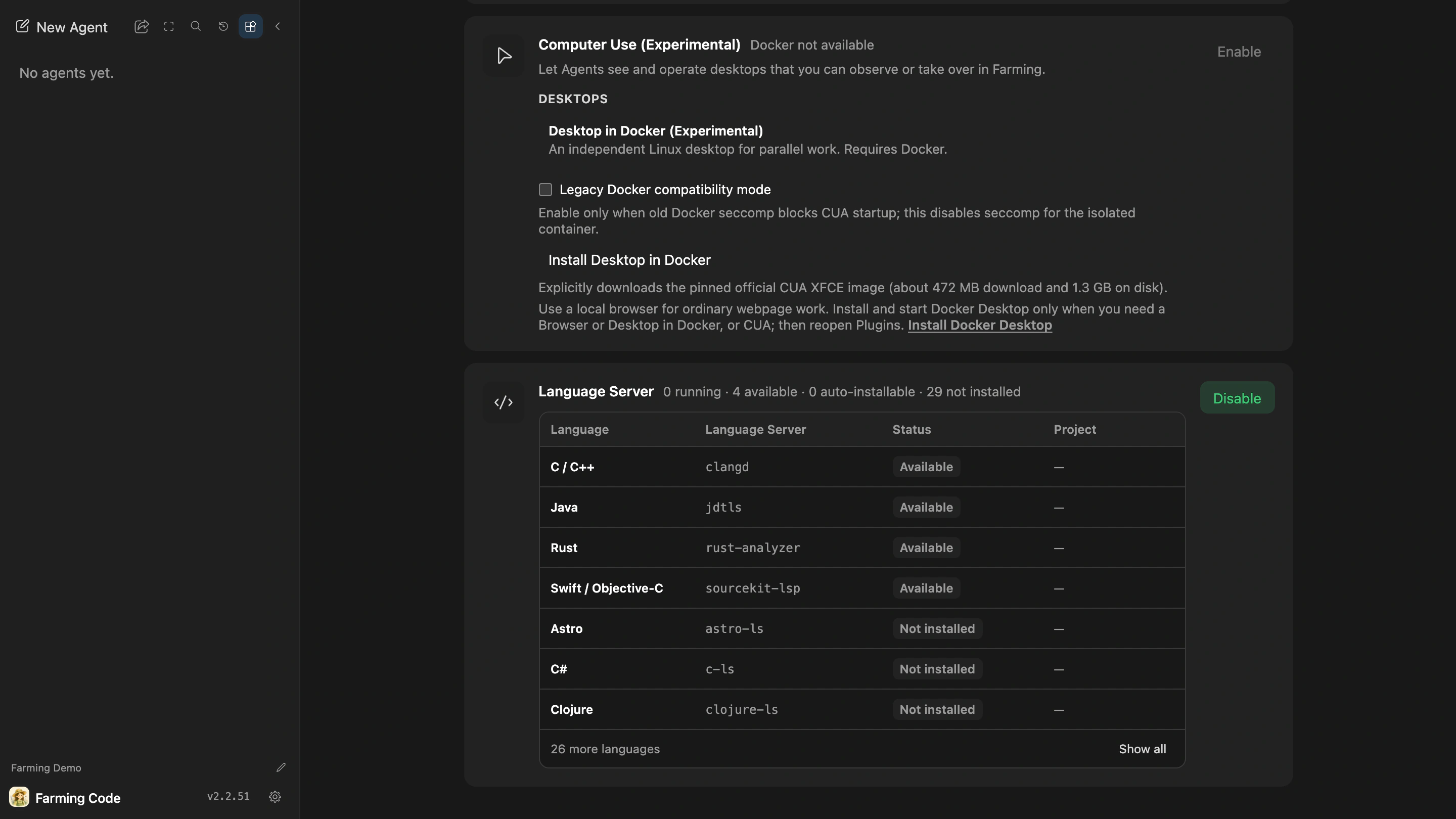
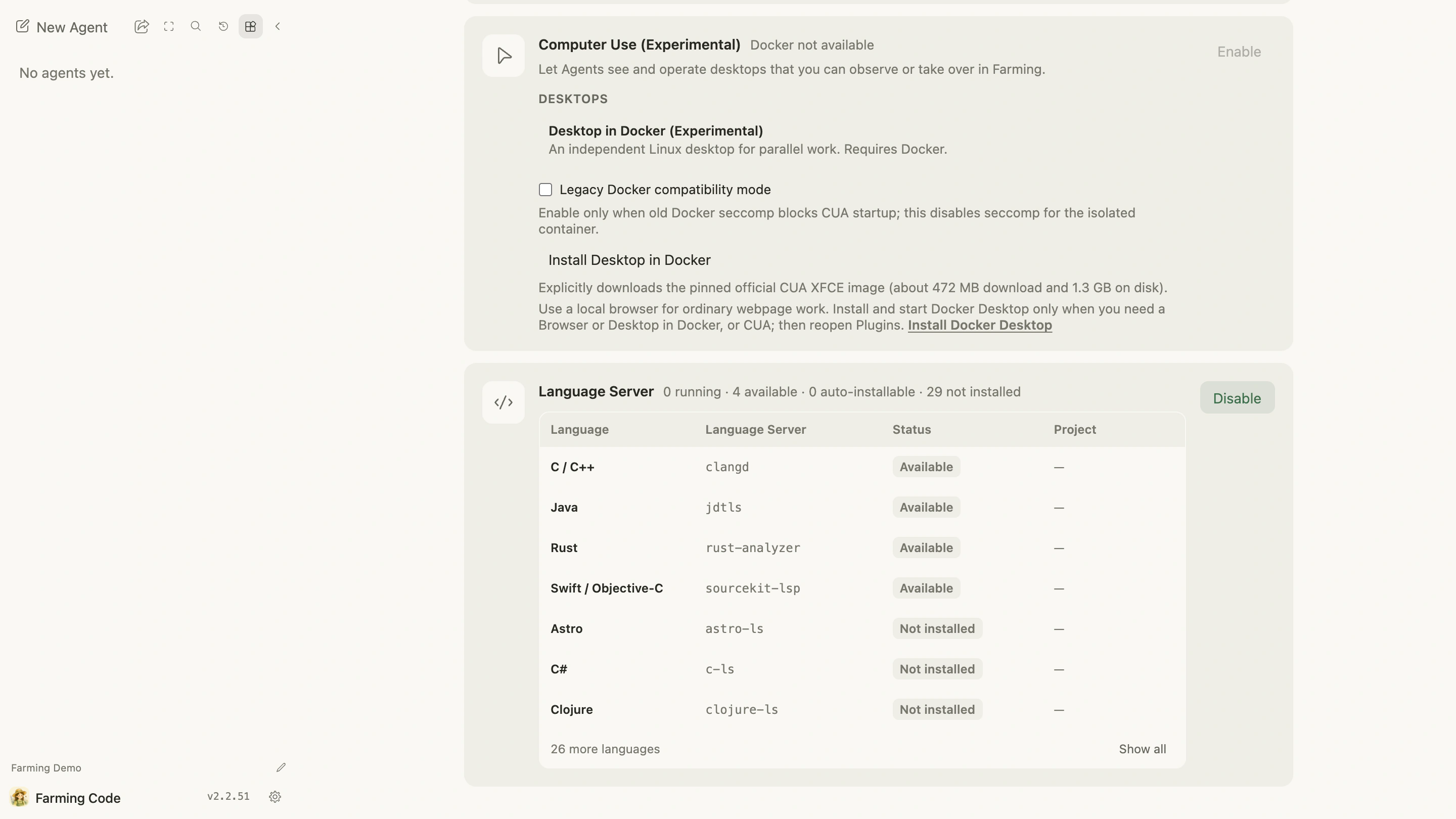
Farming prefers a matching Language Server already installed on the Project host and can prepare selected supported Servers on demand. A remote Project runs its Server on the remote host rather than on the computer displaying the browser.
Saved state
Cross-file results describe the saved file on disk. When a file has unsaved changes, Farming withholds semantic actions that could be stale and requests current results after the file is saved.
If an action is missing, check the Server state in Plugins, the selected Project root, and the capabilities actually supported by that Server.