

Connect an existing Chrome
Install Farming Browser Connector to let Agents use pages and signed-in sessions already open in your Chrome. Farming Browser can use its other browsers without this connector.
Install
First click Prepare Chrome extension folder under Plugins → Browser → My Chrome in Farming. Farming then shows the Chrome Extensions address, folder, size, and integrity. Click the address to copy it, then paste it into Chrome's address bar.
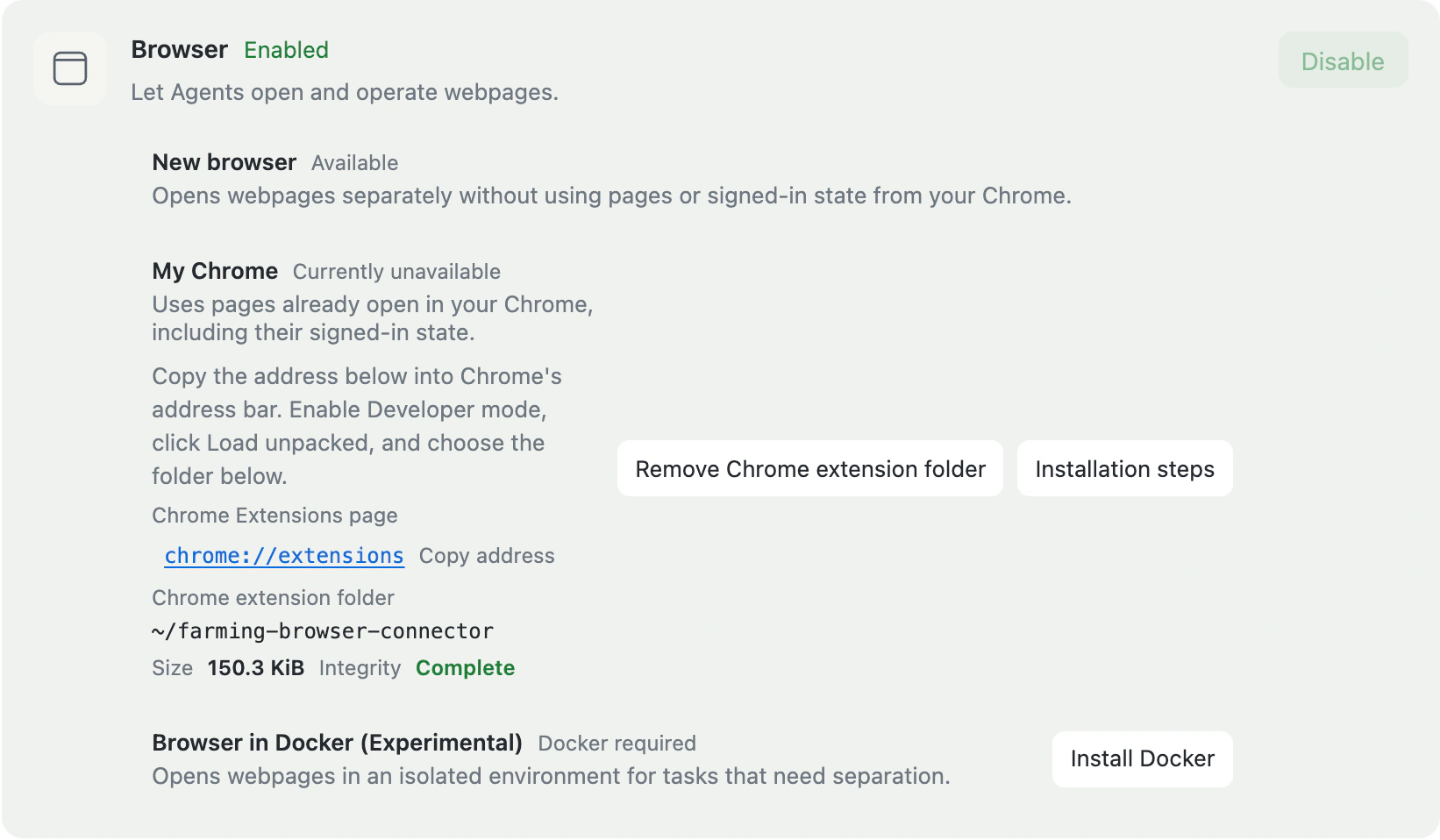
Open
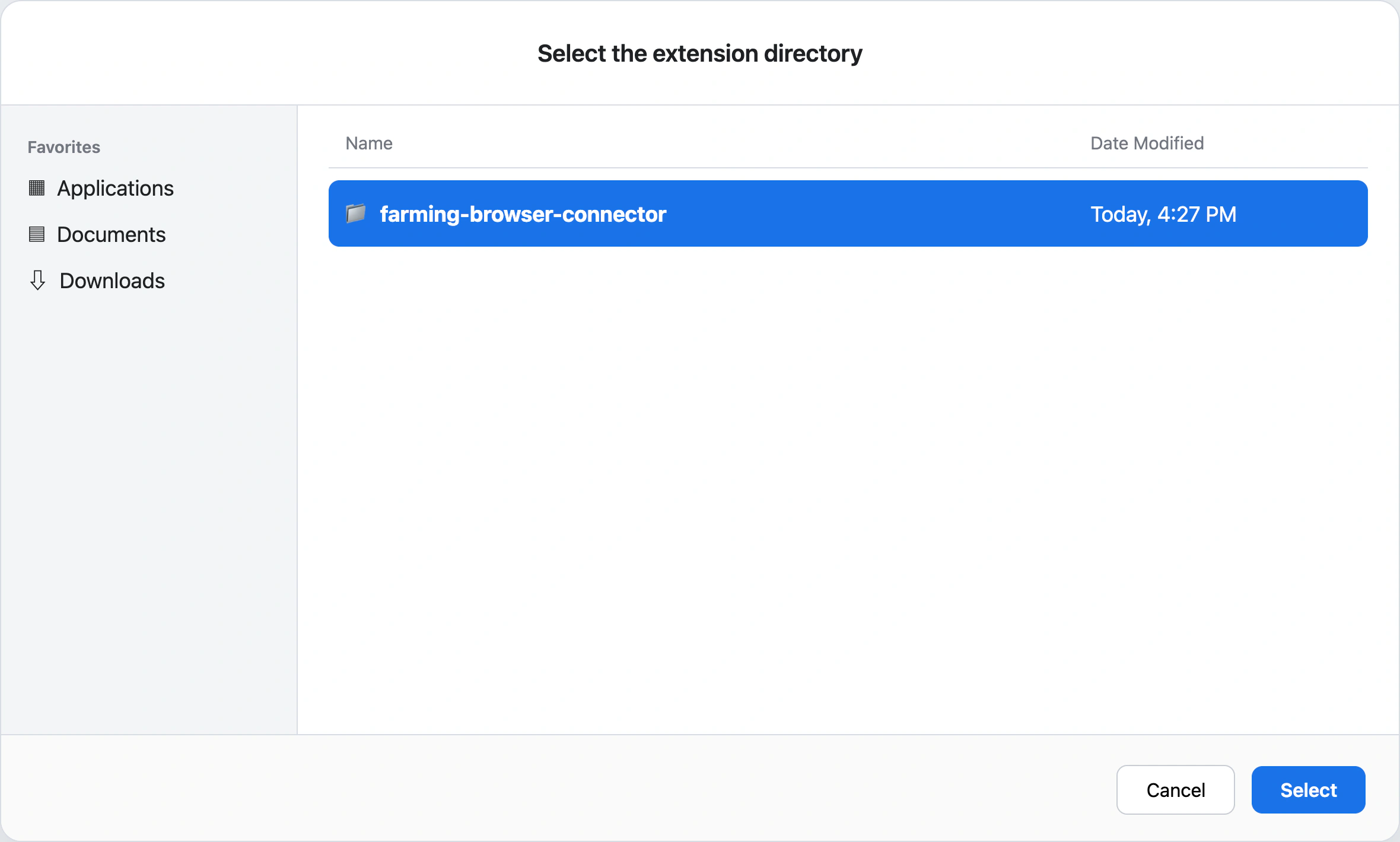
chrome://extensions, enable Developer mode, and click Load unpacked.In the file picker, open your home folder, select farming-browser-connector, then click Select.
Open Chrome's Extensions menu and click Farming Browser Connector.
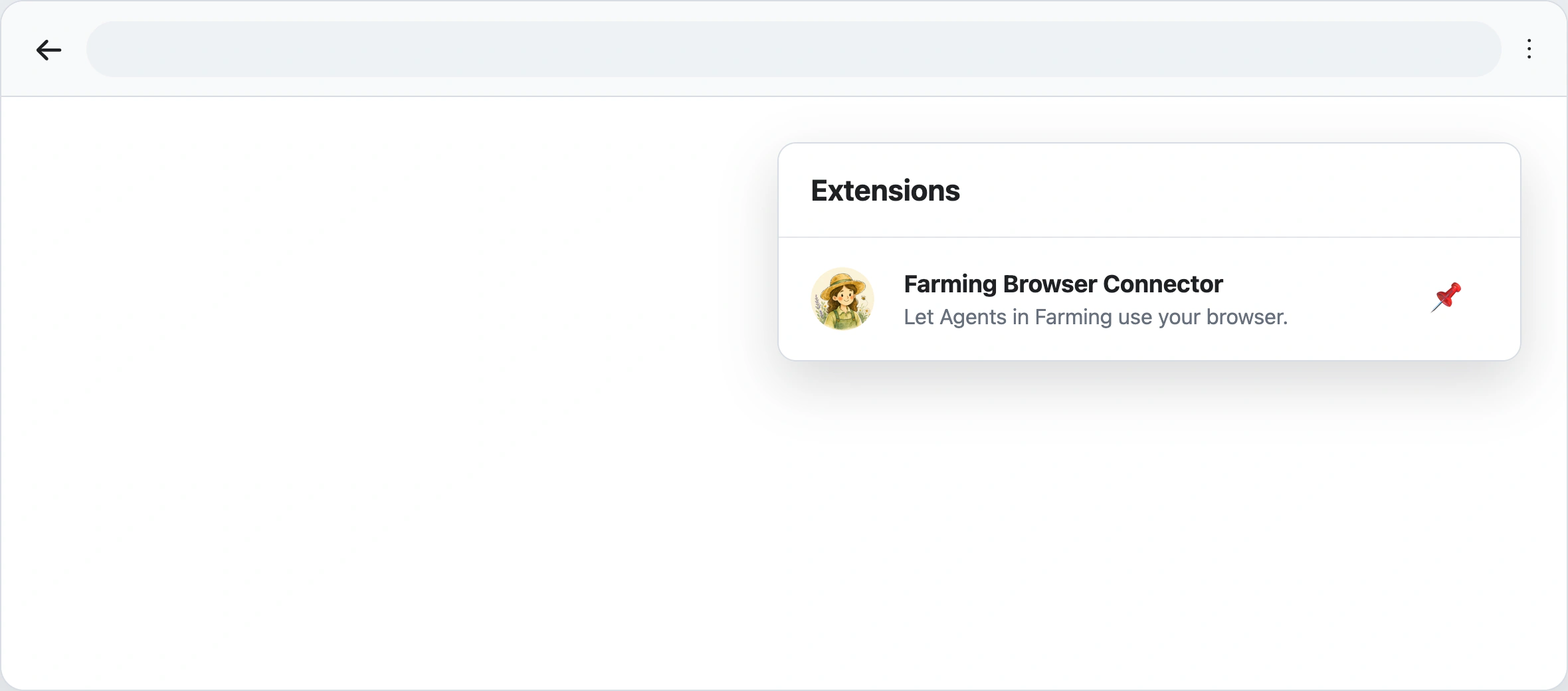
After connection, Agents can find and directly use any ordinary page already open in this Chrome. No per-page click is required. Stopping Farming Browser leaves the Chrome page open. While the Farming Plugins page is visible, My Chrome automatically shows Available or Currently unavailable; no manual test is needed.
Remove
Open chrome://extensions, find Farming Browser Connector, click Remove, then confirm.
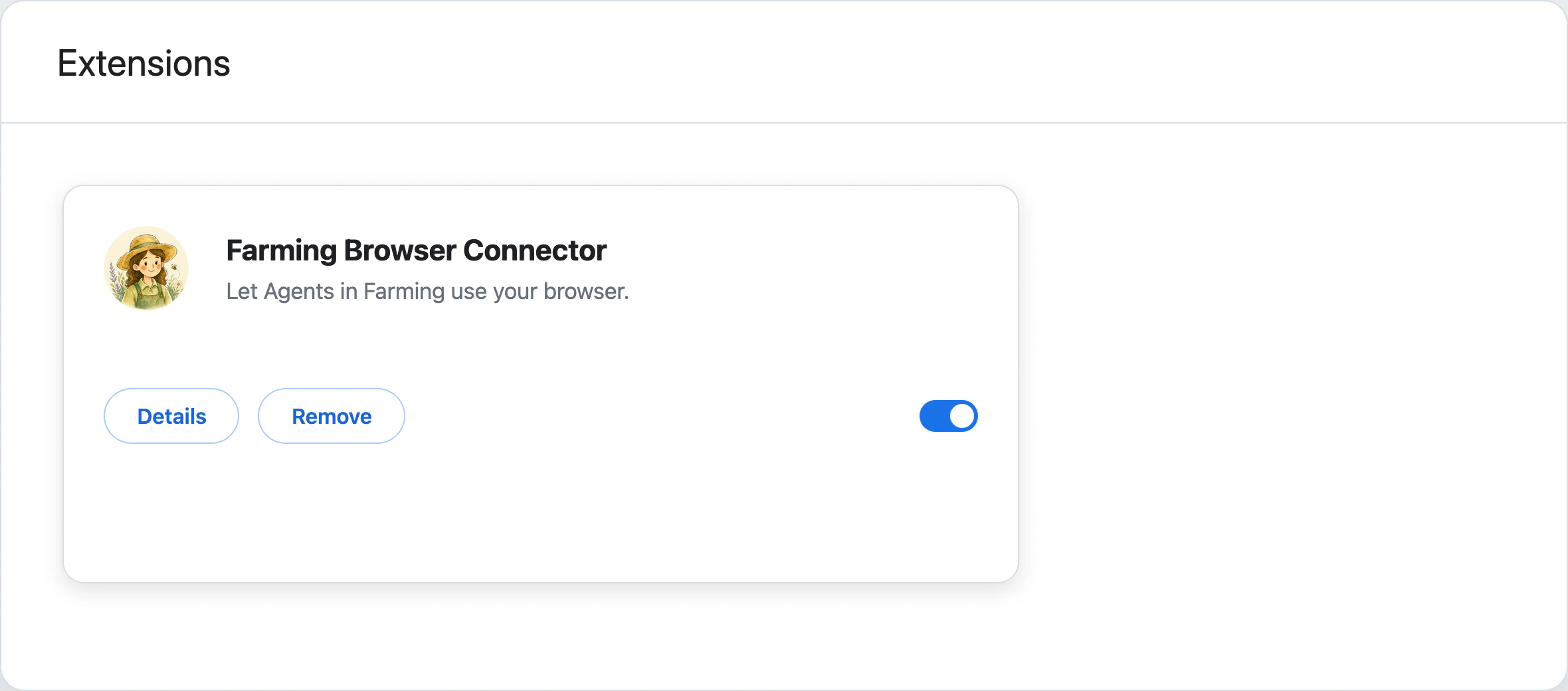
Return to Plugins → Browser → My Chrome in Farming and click Remove Chrome extension folder to clean up the prepared folder entry. This is not a temporary folder: Chrome continues loading the extension from it. Remove the extension from Chrome before removing the folder.